Database Monitoring | Essential Guide for Enterprise DBAs
Database Monitoring That Actually Works: A DBA’s Guide to Staying Ahead of Problems Key takeaways: OS-level monitoring is not database monitoring. Without query-level visibility, you’re...
The biggest monitoring gaps: no query-level visibility, siloed tools, and dashboards that serve everyone but help no one.
SQL Diagnostic Manager provides database-native monitoring built for SQL Server, with prescriptive fixes and AI-powered query optimization across physical, virtual, and cloud environments.
Most shops monitor at the wrong layer. They watch CPU and memory at the OS level, call it database monitoring, and wonder why query timeouts blindside them.
Effective monitoring catches a filling disk while there’s still time to act. Without it, you find out when the database stops accepting writes. Know what to watch, set intelligent thresholds, and pick tools built for how DBAs actually work.
What Database Monitoring Actually Covers
Availability monitoring handles uptime, connectivity, and failover status. When your Always On Availability Group shows SYNCHRONIZING instead of SYNCHRONIZED, availability monitoring catches it before the next failover attempt fails.
Performance monitoring covers query execution times, wait statistics, and resource utilization. This surfaces PAGEIOLATCH_SH waits before users report slow page loads and flags missing indexes before they crater throughput.
Capacity monitoring tracks storage growth and consumption trends. Capacity is the easiest problem to forecast and somehow still catches teams off guard. If you’re not trending storage growth weekly, you will run out of space at the worst possible time.
Security monitoring watches for login failures, permission changes, and suspicious activity. When someone adds themselves to db_owner on a production database, you’ll know within minutes rather than during the next audit review.
The Metrics That Matter for SQL Server
SQL Server exposes internal metrics no OS-level monitoring will capture. Wait statistics reveal where queries stall. Memory pressure indicators show buffer pool health. Disk latency metrics expose storage problems before they cause timeouts.
Wait statistics expose the real bottlenecks
CXPACKET waits can appear during normal parallel query execution and don’t always indicate a problem. High CXPACKET combined with high CXCONSUMER on SQL Server 2016+ often suggests inefficient or imbalanced parallelism that’s worth investigating.
Wait Type
What It Means
Where to Look
CXPACKET / CXCONSUMER
Inefficient or imbalanced parallelism
Query plans, MAXDOP settings
LCK_M_X
Blocking on exclusive locks
Blocking chains, transaction isolation
PAGEIOLATCH_SH
Read I/O pressure, possible buffer pool issues
Buffer pool size, disk read latency
PAGEIOLATCH_EX
Write contention (tempdb or transaction log)
Tempdb configuration, log disk speed
SOS_SCHEDULER_YIELD
CPU pressure from inefficient queries
Top CPU-consuming queries
WRITELOG
Transaction log disk can’t keep pace
Log disk I/O, batch job scheduling
The OS shows 60% CPU usage, but wait stats reveal 40% of that is queries sitting idle on locks. Tracking these over time reveals patterns; sudden spikes in SOS_SCHEDULER_YIELD waits suggest CPU pressure from inefficient queries. WRITELOG waits climbing during batch windows means your transaction log disk can’t keep pace with commit volume, often pointing to slow transaction log storage that needs faster disks or better I/O allocation.
Memory pressure indicators you can’t ignore
Buffer cache hit ratio is often misunderstood. On SQL Server 2012 and newer, modern memory management means BCHR can appear low even when performance is acceptable.
Sustained BCHR below ~90% can indicate a problem, and below ~85% is often associated with serious memory pressure, but only when evaluated alongside PLE and wait statistics. Low BCHR alone doesn’t mean much; check it against PLE and wait before drawing conclusions.
Page life expectancy under 300 seconds has been a common threshold for years, but it was established when servers had 4-8GB of RAM. On modern hardware with 128GB+, a PLE of 300 would indicate severe problems long before you hit that number. Scale your PLE expectations to your buffer pool size rather than relying on a fixed cutoff.
Large-memory servers (256GB+) naturally show higher PLE, which can make older guidance misleading. When PLE drops to 180-200 consistently, you’re thrashing.
These metrics degrade gradually, not catastrophically. Queries just take 15% longer across the board. By the time someone complains, you’re weeks into a performance regression that could have been caught when PLE first started trending down.
Disk latency before it becomes a crisis
Average disk latency over 20ms for reads or 10ms for writes means your storage subsystem is struggling for OLTP workloads. These numbers assume moderate to heavy transactional workloads; extremely light workloads may tolerate slightly higher latency without impact. Analytical workloads and archival storage can tolerate higher latency.
Averages hide the real problems. Extreme spikes matter more than averages. You need percentile data (P95 and P99 latency) to catch intermittent storage problems before they cause transaction timeouts.
Expectations vary by storage type. NVMe should deliver sub-millisecond latency. SSD-backed SAN arrays should stay under 5ms. Spinning disks will show 10-15ms, which is acceptable for archive storage but problematic for active transactional databases.
Persistently elevated queue depth relative to your baseline and storage configuration suggests I/O requests are stacking up. What counts as “high” depends on your storage type and RAID layout — NVMe handles deep queues that would choke spinning disks.
Why Static Thresholds Create Alert Fatigue
Fixed thresholds are a mistake. CPU above 80% for five minutes triggers an alert. Sounds reasonable until you remember that OLTP workloads spike during business hours and batch jobs push CPU to 95% every night at 2 AM. After three weeks of nightly alerts for scheduled maintenance windows, your team stops checking. Then a real outage happens and nobody notices because they’ve tuned it out.
Adaptive baselines solve this by learning what normal looks like for your workload. They track CPU, disk I/O, and query execution times across different time periods and alert when behavior deviates from the established pattern. A 20% CPU spike at 9 AM might be normal. The same spike at 3 AM is an anomaly worth investigating.
Static Thresholds
Adaptive Baselines
Setup effort
Low (pick a number)
Higher (requires a learning period)
False positive rate
High during scheduled jobs, off-hours
Significantly lower after baseline established
Maintenance
Manual tuning per instance
Self-adjusting
Best for
Hard limits (disk full, database offline)
Performance deviations, pattern detection
Risk
Alert fatigue, team stops checking
Bad baselines if training period includes anomalies
Implementation quality varies. Some vendors call it adaptive when they’re just running standard deviation calculations on a 30-day window. Real adaptive monitoring accounts for hourly patterns, day-of-week variations, and seasonal trends. It distinguishes between your monthly batch job and an actual runaway query. Baseline-driven alerting can significantly reduce false positives, but only if the baselines are actually intelligent.
SQL Server’s Query Store (SQL Server 2016+) is ideal for spotting query regressions and execution plan changes over time but doesn’t track OS or storage metrics. It complements comprehensive monitoring tools but doesn’t replace the need for infrastructure-level visibility, wait statistics, and cross-platform monitoring.
Evaluating Monitoring Tools: What to Look For
Multi-platform support sounds basic until you’re managing 50 instances across Azure, RDS, and on-prem with three different monitoring tools because each platform team bought what worked for their infrastructure. The tool sprawl becomes worse than the database sprawl.
Your monitoring tool needs to handle physical servers, VMware clusters, Azure SQL Database, and RDS for SQL Server without separate agents or dashboards for each platform.
You need:
Threshold-based alerts for hard limits (database offline, disk at 95%)
Anomaly-based alerts for performance deviations that fall within “acceptable” ranges but deviate from patterns
Suppression during maintenance windows that doesn’t require manual intervention every time
Integration with ticketing systems that creates actionable tickets, not just notification spam
The best alerting provides context. “High CPU” tells you there’s a problem. “CPU at 92%, top consumer: stored procedure dbo.GenerateMonthlyReport, executing 15x per second, normally runs 3x per minute” gives you a starting point.
Historical trending enables capacity planning and performance regression analysis. Real-time dashboards show what’s happening now. Historical trending shows what’s been building for weeks.
If CPU utilization has crept from 40% to 65% over six months, you’ve got a capacity problem that won’t show up in daily monitoring. A year of retention lets you compare quarters and account for seasonal patterns. Two years lets you prove that this quarter’s performance problems started when the development team deployed their “optimization” six months ago.
Common Monitoring Gaps That Cause Problems
Infrastructure monitoring shows high CPU but doesn’t show which queries are consuming it. Disk I/O spikes, but you have no idea which tables are being scanned or why. Without execution plans and missing index identification, you’re blind. When someone asks why the application is slow, “the server is busy” isn’t an answer.
Siloed tools fragment visibility across platforms. One tool monitors on-premises SQL Servers, another monitors Azure SQL Database, a third tracks cloud infrastructure. When performance degrades, you’re switching between dashboards trying to correlate events. Centralized monitoring with unified views across hybrid environments eliminates this fragmentation.
Role-based dashboards reduce the noise each team has to filter. DBAs care about wait stats, blocking chains, and index fragmentation. IT operations teams care about uptime, failover status, and backup success rates. Security officers care about failed login attempts and permission changes. Purpose-built views let each team focus on what matters.
Purpose-Built Monitoring for SQL Server Environments
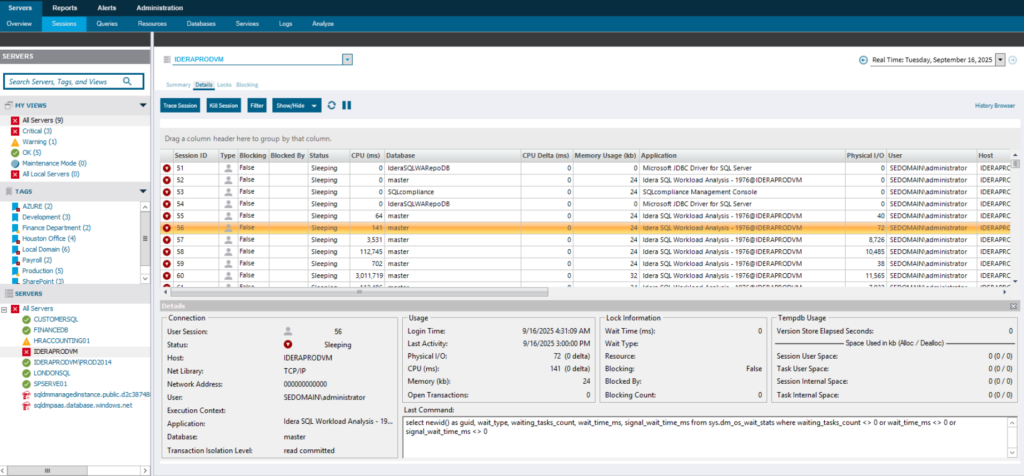
SQL Diagnostic Manager is built around SQL Server internals: wait types, execution plans, tempdb contention, parameter sniffing issues. Most monitoring platforms bolt database support onto generic infrastructure monitoring. This one was built from the ground up for SQL Server, and it shows in the details. The wait stats breakdown doesn’t require translation, and the blocking chain visualization shows you the actual problem session, not just that blocking exists.
What you get during incidents:
Wait state analysis showing where queries are blocked and which wait types are accumulating
Blocking chain visualization with the actual problem session, not just “blocking exists”
Query performance tracking at the statement level with execution plans and resource consumption
Executable scripts to fix common problems (CREATE INDEX statements, KILL commands for blocking sessions)
Adaptive baselines and prescriptive analysis
SQL Diagnostic Manager uses adaptive baselines that learn normal behavior patterns for each monitored instance across hourly, daily, and weekly cycles. A CPU spike during a known batch window doesn’t generate noise. An unexpected spike outside normal parameters triggers an alert with context about what changed and when the deviation started.
Prescriptive analysis connects problem identification to resolution. When the system detects a missing index causing table scans, it provides the CREATE INDEX statement. When it finds blocking chains, it shows which transactions to investigate and provides the relevant KILL commands if needed.
When you’re troubleshooting at 2 AM without a senior DBA, the difference between “CPU is high” and “CPU is high due to table scans on dbo.Orders; CREATE NONCLUSTERED INDEX IX_Orders_Status ON dbo.Orders(Status) INCLUDE (OrderDate, CustomerID)” is everything.
AI-powered query and index optimization
Version 14.0 of SQL Diagnostic Manager adds AI-powered query and index optimization that extends beyond traditional rule-based tuning. You can select long-running queries directly from the Query Monitor and generate optimization recommendations, for a single query or a batch of queries at once. The multi-query batch optimization analyzes patterns across related queries to avoid creating redundant indexes or recommending conflicting schema changes.
The AI analyzes execution patterns, identifies inefficiencies in join orders and predicate evaluations, and produces schema and index recommendations based on actual workload behavior rather than static analysis. Advanced SQL tuning gets integrated directly into the monitoring workflow. You’re not just seeing what’s slow; you’re getting actionable improvements generated from execution plan analysis and runtime statistics.
SQL Diagnostic Manager supports physical servers, VMware environments, Hyper-V, Azure SQL Database, and Amazon RDS for SQL Server from a single console. Whether a performance issue occurs on a physical server or an Azure SQL Database instance, the diagnostic workflow is identical.
Monitoring as a Foundation for Proactive Database Management
Monitoring either prevents problems or documents failures. DBAs need query-level visibility, adaptive baselines that cut alert noise, and prescriptive analysis that turns diagnostics into executable fixes.
SQL Diagnostic Manager provides SQL Server-native monitoring built specifically for production environments, with wait state analysis, blocking chain visualization, and AI-powered query optimization. It works across physical, virtual, and cloud platforms from a single console, delivering the diagnostic depth required to catch issues before they escalate.
See how it delivers the database-native visibility and prescriptive analysis your team needs to stay ahead of problems.Learn more about SQL Diagnostic Manager.
Brandon Adams
SQL Server Tools Product Marketing Manager
With over two decades of experience in SQL, SaaS, data center infrastructure, power quality, data storage, disaster recovery, and IT security, Brandon bridges technical expertise with business needs to help organizations get the most out of their data environments. He focuses on making complex database and infrastructure challenges easier to understand, enabling DBAs and IT leaders to improve performance, strengthen security, and simplify management.
Keep SQL Server Fast, Reliable and Secure - with SQL Diagnostic Manager