









How AI Optimization Works
You already know the drill. A query shows up in Query Monitor running long, you pull the execution plan, you try an index, you check...
- Written By: Brandon Adams
- Last Updated: November 3, 2026
- 13 minutes read

You already know the drill. A query shows up in Query Monitor running long, you pull the execution plan, you try an index, you check...

You already know the drill. A query shows up in Query Monitor running long, you pull the execution plan, you try an index, you check whether it helped the query you were fixing and hurt three others you were not thinking about, and an hour later you are still not sure you made the right call. Index tuning is one of those tasks where experience helps, but even an experienced DBA is doing a lot of mental math on incomplete information.
SQL Diagnostic Manager introduced AI powered query and index optimization back in version 14.0, and it remains one of the more differentiated capabilities in the product. With 14.3 putting a modernized console and a deeper set of enterprise features around it, this is a good moment to look at how the AI optimization actually works, what it does and does not do, and why the control model around it is arguably the more interesting part of the story.
Index tuning has always been a multi-variable problem disguised as a single-variable one. Adding an index to speed up query A can slow down query B, bloat writes across the table, and add maintenance overhead nobody accounted for. Most tuning advice, human or automated, looks at one query at a time, which means it can optimize a query into a corner: faster for the query you were chasing, worse for everything else touching that table.
Doing this well, across a workload of related queries rather than one query in isolation, is not something most DBAs have the time to do by hand, and it is not something a junior or mid-level DBA can reliably do at all without a lot of trial and error. That is the gap SQL Diagnostic Manager’s AI optimization is built to close.
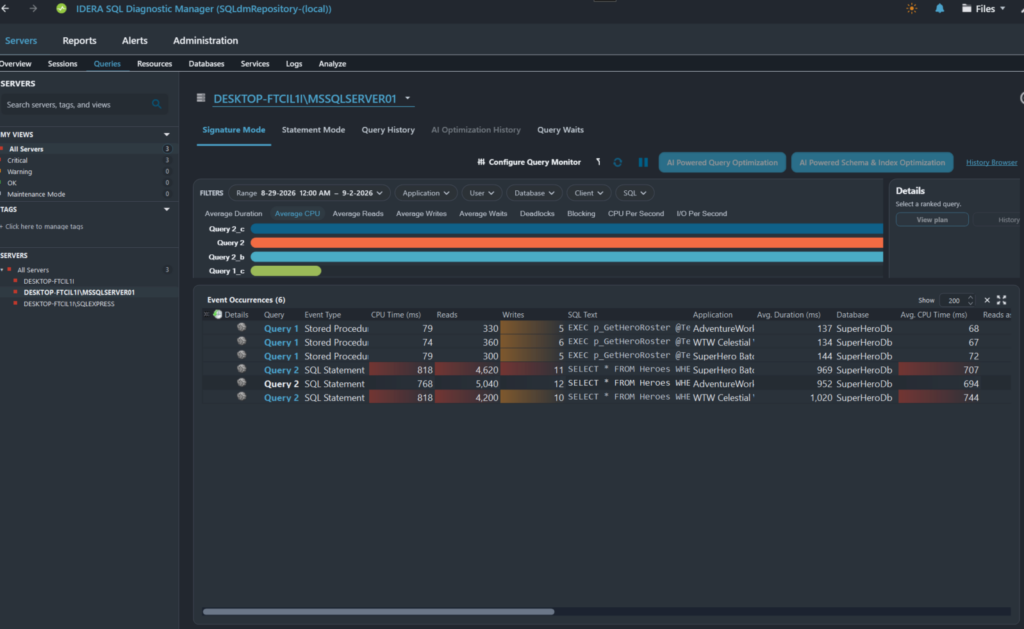
SQL Diagnostic Manager 14.3 query monitoring screen (dark mode) with AI optimization available
How it works, step by step
The workflow is intentionally simple from the DBA’s side, even though there is real analysis happening underneath it:
That last step is not a minor detail. It is the difference between a tool that makes suggestions and a tool that makes changes, and it is worth understanding before you assume AI features mean less oversight rather than more informed oversight.
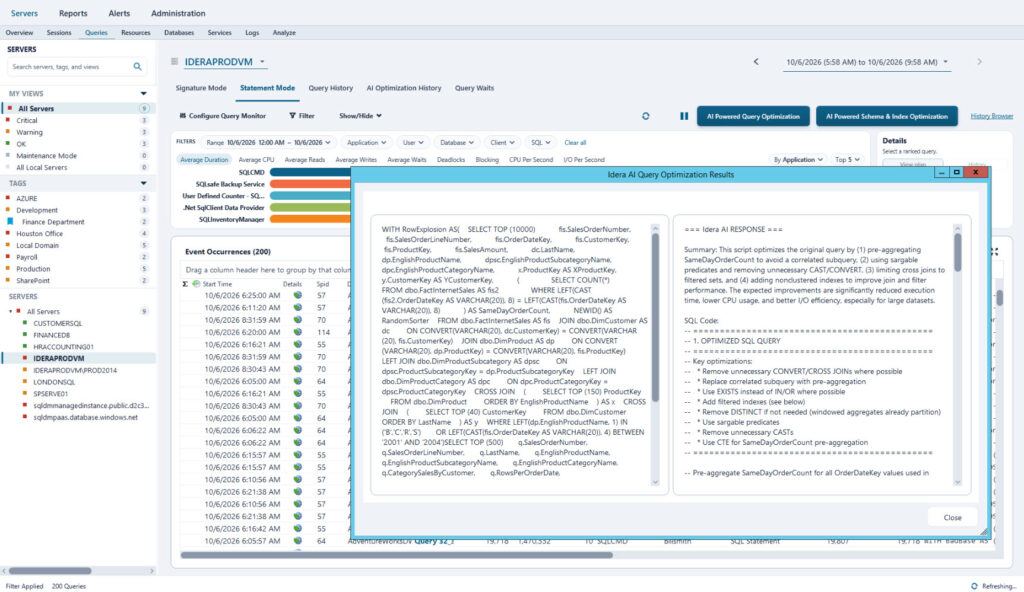
SQL Diagnostic Manager Query submission with AI optimization suggestion
The AI label gets the attention, but the more useful distinction is between optimizing a single query and optimizing a workload. SQL Diagnostic Manager supports both:
This is the part of the story that has no real equivalent among commercial competitors today. Plenty of tools will suggest an index for a query in isolation. Far fewer will look at a group of competing queries and recommend an index design that works for the set, not just the one query you happened to click on.
This is usually the first question a security minded DBA asks, and it is a fair one. Here is what actually happens: no table data, meaning no row contents, is ever submitted to IDERA AI. What gets sent is the query text and the schema, the table creation details and index definitions needed to reason about the query. There is one edge case worth knowing: if a query contains literal text inside something like a CASE statement, that text is visible in the review step before submission, and you can choose not to submit it.
Every submission goes through a manual review screen first. You see exactly what would be sent before you send it, and you can reject the submission instead of approving it. Nothing goes out automatically in the background.
The control model is built around a few consistent rules, and they are worth stating plainly because they are the difference between a feature security teams will approve and one they will block on sight:
If you enable it for your team, the honest way to describe what changes is this: your DBAs get a faster, better informed starting point for tuning decisions they were always going to make. The AI does not take the decision away from them. It gives them a stronger first draft.
Does SQL Diagnostic Manager send my table data to an AI service? No. Only the query text and schema information, meaning table and index structure, are sent. No row-level data is ever submitted.
Are AI recommendations applied to my database automatically? No. Every recommendation is shown for manual review, and you copy and implement what you choose to apply. Index changes include a rollback script.
Can we limit AI optimization to specific users or teams? Yes. AI features are disabled by default, and an administrator must enable the capability and grant permission to individual users before anyone can use it.
What makes this different from a typical index tuning advisor? Most tuning advisors look at one query at a time. SQL Diagnostic Manager can analyze a group of related queries together and recommend an index design that balances all of them, rather than optimizing one query at the expense of the others sharing that table.
The best way to understand AI optimization in SQL Diagnostic Manager is to point it at a query you already know is a problem. Start a free 14-day trial of SQL Diagnostic Manager 14.3 and run it against a real query in your own environment. It is agentless, no credit card is required, and you will be monitoring live in about five minutes.
Already a SQL Diagnostic Manager customer? Upgrade to 14.3 through the Idera Customer Portal to get the modernized console, the new Enterprise Reports, and real-time Web Console monitoring alongside the AI optimization capability covered here.

Contact our sales team to get a personalized demo of our database management software for SQL Server!