













Application and Relational Database Performance Monitoring for Multiple Platforms
Precise


Track the performance of application transactions into relational databases for multiple platforms from a single user interface
- End-to-end transaction visibility quickly isolates issues anywhere in the stack
- Recommended corrective actions speed time to resolution
- Historical analysis and trending discovers potential issues before they occur
- Database stores contextual details to correlate transactions with business issues
- Scalable performance for mission-critical business processes
- Multi-platform support spans a diverse range of system clients
End-to-End Transaction Visibility
Variations in usage patterns, user demands, platforms, architectures, components, and customizations all play their part in undermining performance. The Precise Platform collects transaction performance information across all key technology tiers including applications,virtualization, server, databases, and storage. This end-to-end view allows IT to have visibility across their entire environment through a single application.
Recommended Corrective Actions
Reduce time to repair issues with the Precise Platform customer problem knowledge base. The knowledge base consists of real customer case data that is constantly updated. By learning from past problems for other customers, the Precise Platform can quickly identify issues, suggest a list of “prime suspects,” recommend corrective actions and even provides answers to “what-if” scenarios to assess the impact before you make a change.
Historical Analysis and Trending
The only thing better than fixing performance problems quickly, is preventing them altogether. The Precise Platform can store and process months of history (quarter-end / year-end closing) in its performance warehouse, tracking and comparing behavior and seasonal trends over long periods of time. This means problems can be identified and fixed before they actually impact performance.
Performance Management Database
The Precise Platform works by tracking the path of transactions through all tiers of virtual and physical infrastructure and stores both the business context and performance details in a centralized repository, the Precise Management Database (PMDB). The platform then automatically correlates transactions with users, databases, devices, files, and objects being accessed to identify performance problems anywhere within the environment.
Scalable Performance
From the world’s largest financial institutions to complex health care organizations, customers trust the Precise Platform to perform and scale to millions of transactions on their most critical business systems.
Multi-Platform Support
The Precise Platform measures the end-user experience starting from the browser and tracks it through all tiers of virtual and physical infrastructure – application to database to storage. The platform empowers IT to intelligently monitor and optimize performance for custom software and for leading enterprise application, such as SAP, Oracle, PeopleSoft and more.
Comprehensive Dashboard
The dashboard is an easy-to-use tool for visualizing the overall health and status of all monitored systems. It provides support for detailed views of individual application servers, organizations, locales and other entities as well as top-level summary views of multiple systems.

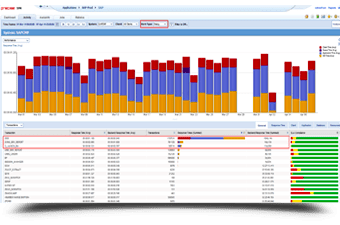
Europa Sports is very likely to recommend Precise for this reason: “Precise provides excellent drill-down capabilities to reveal information not easily retrieved otherwise.”
Rick Reynolds, JD Edwards CNC/System Administrator, Europa Sports (Medium Enterprise, Wholesale Distribution), USA.
TechValidate
